Push Your Windows Daw To The Limit Without Crashing
Heavy summer sessions can be brutal on a Windows PC. The room is warm, deadlines are stacked, and your DAW is loaded with virtual instruments, mixing chains, and mastering plugins. One bad crash can kill the vibe and waste a whole afternoon of good ideas.
Here is the goal: keep those big, plugin-heavy projects stable while still pushing your system hard. Whether you're runningSoundBridge DAW or Ableton Live, the same four habits keep a session solid: bridging, sandboxing, crash recovery, and project versioning.
Bridging means running older or 32-bit plugins inside a 64-bit DAW. Sandboxing means loading plugins in a way that keeps a bad one from taking down the whole session. Crash recovery is how your DAW and files are set up to survive a failure. Project versioning is how you save and label different project stages so you can always roll back. Together, these turn a fragile rig into a solid workhorse.
Build A Rock-Solid Windows DAW Foundation
Before bridging and sandboxing, you need a clean Windows base. A messy system makes every plugin feel unstable, even the good ones.
Start with some simple OS tweaks:
- Set your power plan to High Performance so your CPU is not throttling
- Turn off sleep and hibernate on long studio days
- Disable background apps you never use, especially ones that scan or pop up mid-session
Drivers matter too. Keep your audio interface driver and chipset drivers current, but be a little conservative with graphics drivers, since the newest graphics update is not always the most stable for audio. If your system is running well, you do not need to chase every small update.
For your DAW and plugins:
- Use a 64-bit DAW host whenever possible, whether that's SoundBridge DAW orAbleton Live
- Stick to modern plugin formats supported natively by your DAW
- Update your DAW and main plugins before big projects, not during them
It also helps to set smart defaults: choose one main sample rate for most projects so you are not jumping around, pick starting buffer sizes for tracking sessions and separate ones for mixing, and keep a clean, consistent plugin folder structure so nothing gets lost.
One more habit around updates: when you grab new plugins, do not install them right before a paid session. Keep a test window, maybe early in the week, where you add and check new stuff before real work starts.
Master Plugin Bridging and Sandboxing Workflows
Sometimes you still need older plugins, or you want to push heavy CPU chains without risking the main project. That is where bridging and sandboxing shine.
Bridging is helpful when:
- You have a legacy 32-bit plugin you love in a 64-bit DAW
- A plugin is a bit unstable and you want it in its own space
- You want to keep your main DAW process lighter and move some load out
Ableton Live and SoundBridge DAW each handle this a little differently, but most modern DAWs offer some way to bridge or sandbox plugins into separate processes, so if one crashes, the DAW can often just disable that plugin instead of closing the whole project.
Here are some practical workflows:
- Keep "core mix" plugins like an EQ, such asParity EQ by Stagecraft Software, plus compression and volume shaping inside the main DAW process
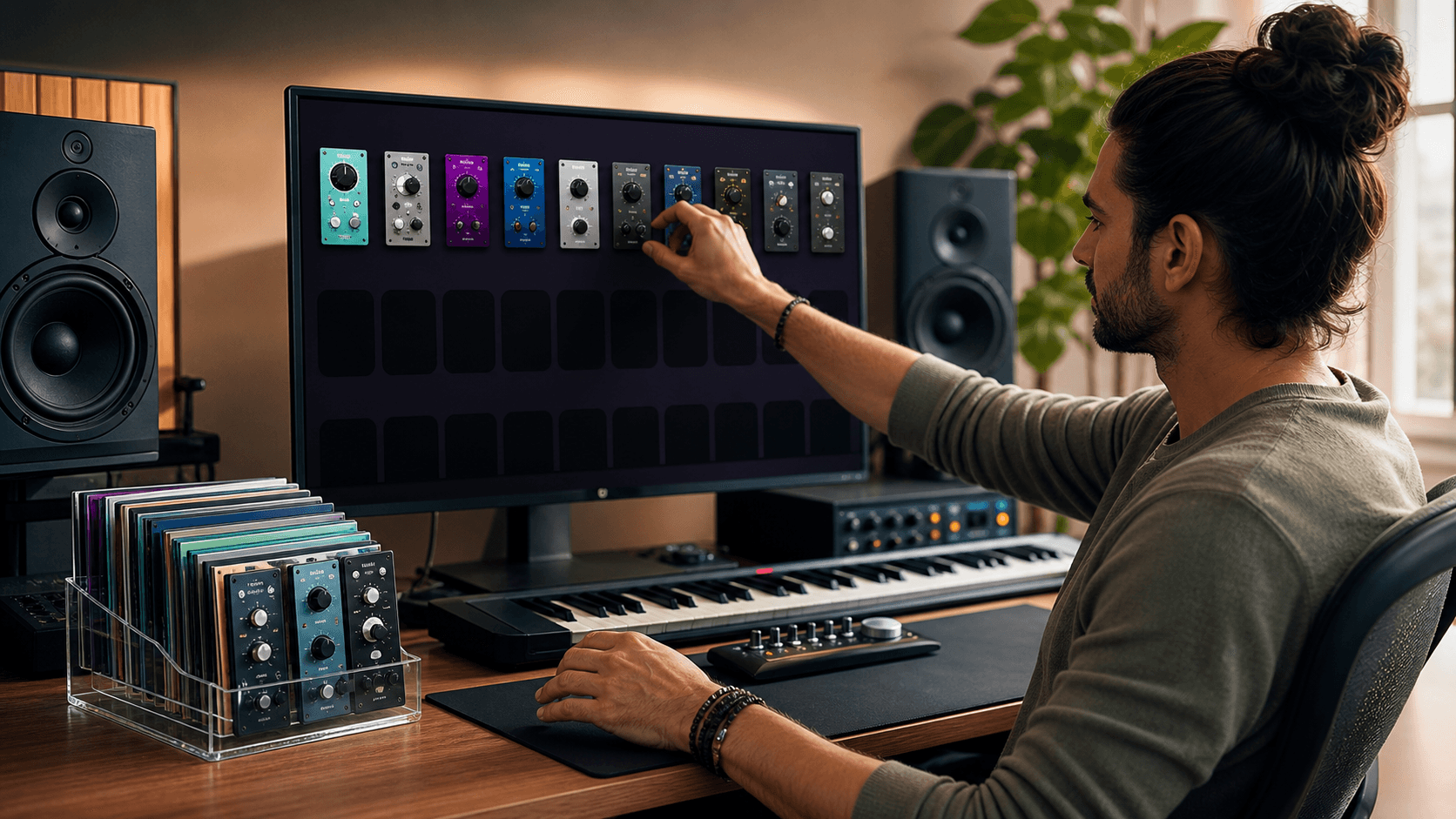
- Load experimental or newer plugins, like a synth such asGyrator X by Okmog, in sandboxed or bridged mode until you trust them
- Put very heavy sample-based instruments, like the massiveEastWest Hollywood Bundle + Spaces II orchestral library, into separate processes when possible, since large sample libraries are some of the heaviest loads on RAM and CPU
When you pick up new plugins, treat them like guests. Open a blank "lab" project, stack up instances, push polyphony, slam the CPU, and see where things break. If they pass the stress test, they are ready for your main mixes.
Crash-Proof Your Sessions With Smart Recovery
Crashes may still happen, so plan for them. The first guard is autosave and backup settings. Every DAW handles this a little differently, but the ideas are the same.
Dial in autosave so that you save often enough that a crash only loses a small chunk of work, backup files go to a stable local drive rather than a network location, and old backups get trimmed so your drive does not fill with stale copies.
Next, build a simple crash triage routine. When your DAW crashes:
- Reopen the project with plugins disabled, if your DAW supports that
- Enable plugins in small groups until something causes a problem
- When you find the trouble plugin, try updating it, bridging or sandboxing it, or swapping it out
Safe modes and temporary blacklists help you get back into a project without fully removing plugins. Once the session opens, you can print tracks to audio and remove unstable instances.
It also helps to keep a small crash diary, a simple text file where you note which plugin or library was loaded when the crash happened, what you were doing (like changing presets or freezing tracks), and whether the crash repeats or was a one-time event. Over time, patterns show up. You might learn that certain sample libraries, like a large orchestral collection, like being on their own drive, or that some virtual instruments behave better with a higher buffer size.
Bulletproof Project Versioning For Big Sessions
Versioning keeps your progress safe even when experiments go wrong. A good naming system can save hours of stress.
Use simple, clear names, for example:
- SongName_v01_PreMix
- SongName_v02_PreMaster
- SongName_v03_PrintFX
- SongName_v03b_NoVocals
Add dates if that helps. The main idea is to never overwrite your last known stable version before trying something wild.
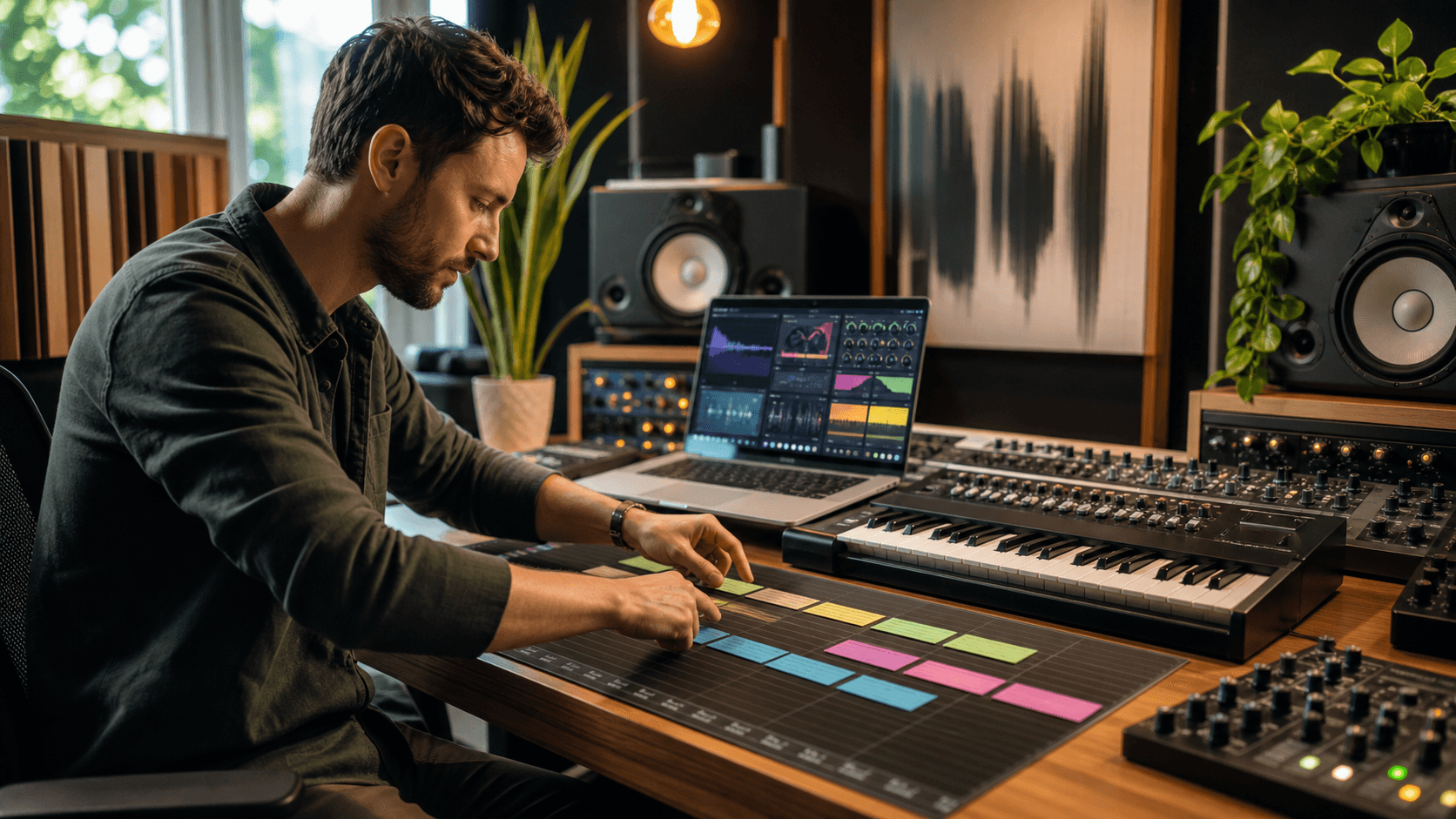
Parallel project branches are also powerful. Keep separate versions for sound design and wild experiments, arrangement and structure changes, and your final mix and mastering chain, such as one built aroundTotal Studio 5 Pro by IK Multimedia for mastering and processing. Each branch can have its own plugin loadout. If a new mastering chain starts crashing, you can hop back to the last stable mix version without losing your arrangement or sound design work.
For backups, mix both local and cloud:
- Main project drive for current work
- Mirrored local backup drive that syncs at set times
- Cloud sync for projects and presets, but with sample folders excluded so uploads stay manageable
If your OS or drive fails, having project files and presets safe means you can reinstall your music production software for PC and keep moving instead of starting over from scratch.
Turn Stability Into A Creative Summer Advantage
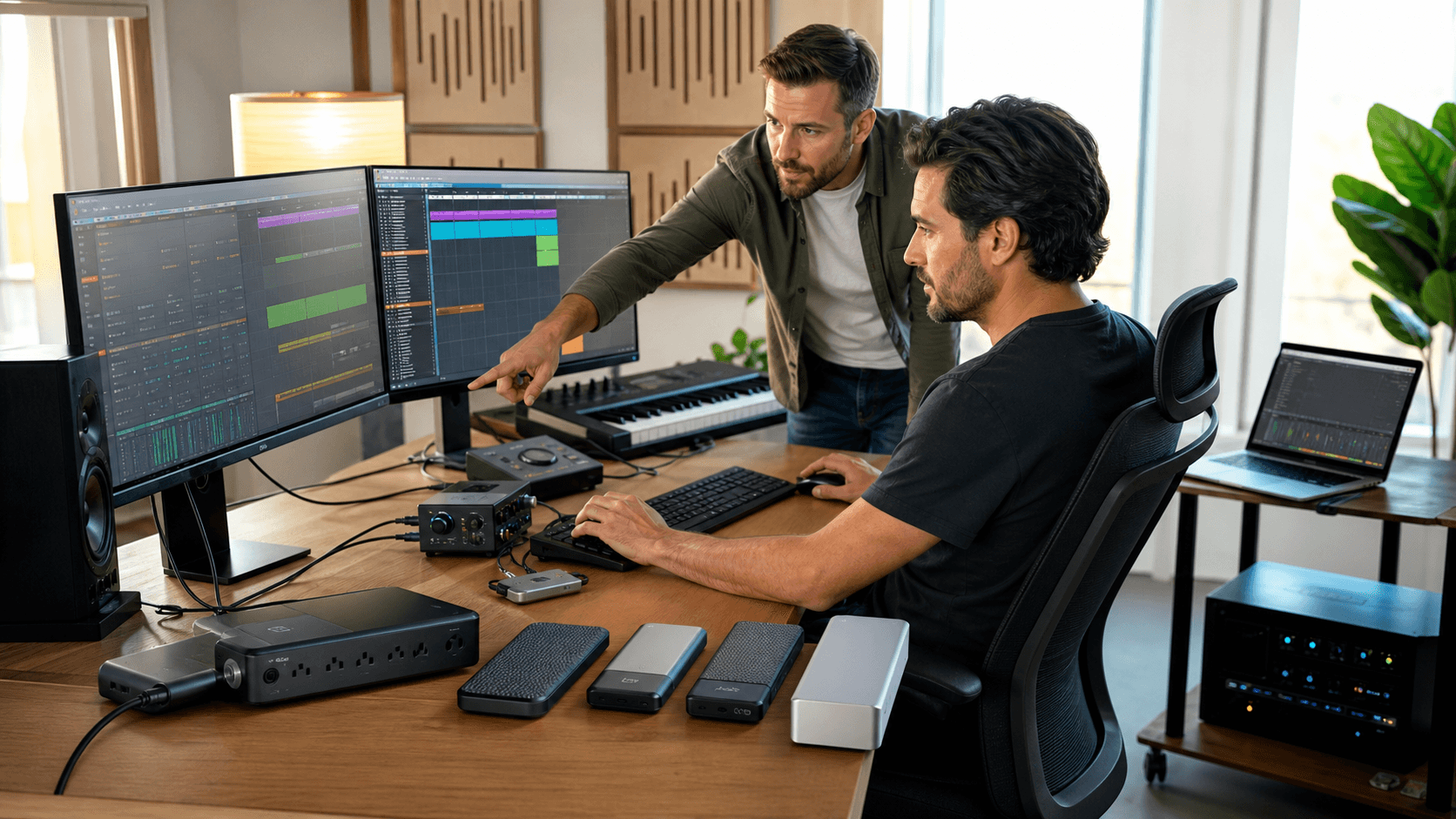
A stable Windows DAW is not just about avoiding crashes; it is about staying creative when sessions get long and the summer heat wears you down. Setting aside one "studio maintenance day" to tune your system, set autosaves, organize folders, and define your bridging and sandboxing habits can pay off for every project after, no matter which DAW you call home.
From there, keep a simple pre-project checklist:
- Are Windows and drivers stable and tested?
- Is the DAW updated and backed up?
- Are new plugins stress-tested in a lab project?
- Are autosave and backups working and verified?
- Do you have a clear versioning plan for this project?
Treat stability like part of your sound. The more your system stays up, the more you can stack creative chains, try new plugins, and push your mixes without worrying that the next click will freeze everything.
Get Started With Your Project Today
If you are ready to take your tracks further, explore our curated collection of music production software for PC tailored to fit any workflow or budget. At Audio Plugin Deals, we regularly source powerful instruments, effects, and plugins so you can focus on creating instead of searching. Browse the latest deals, build the setup that matches your sound, and if you have any questions about choosing the right plugins, feel free to contact us.