Make Your PC Feel Like New in Your DAW Sessions
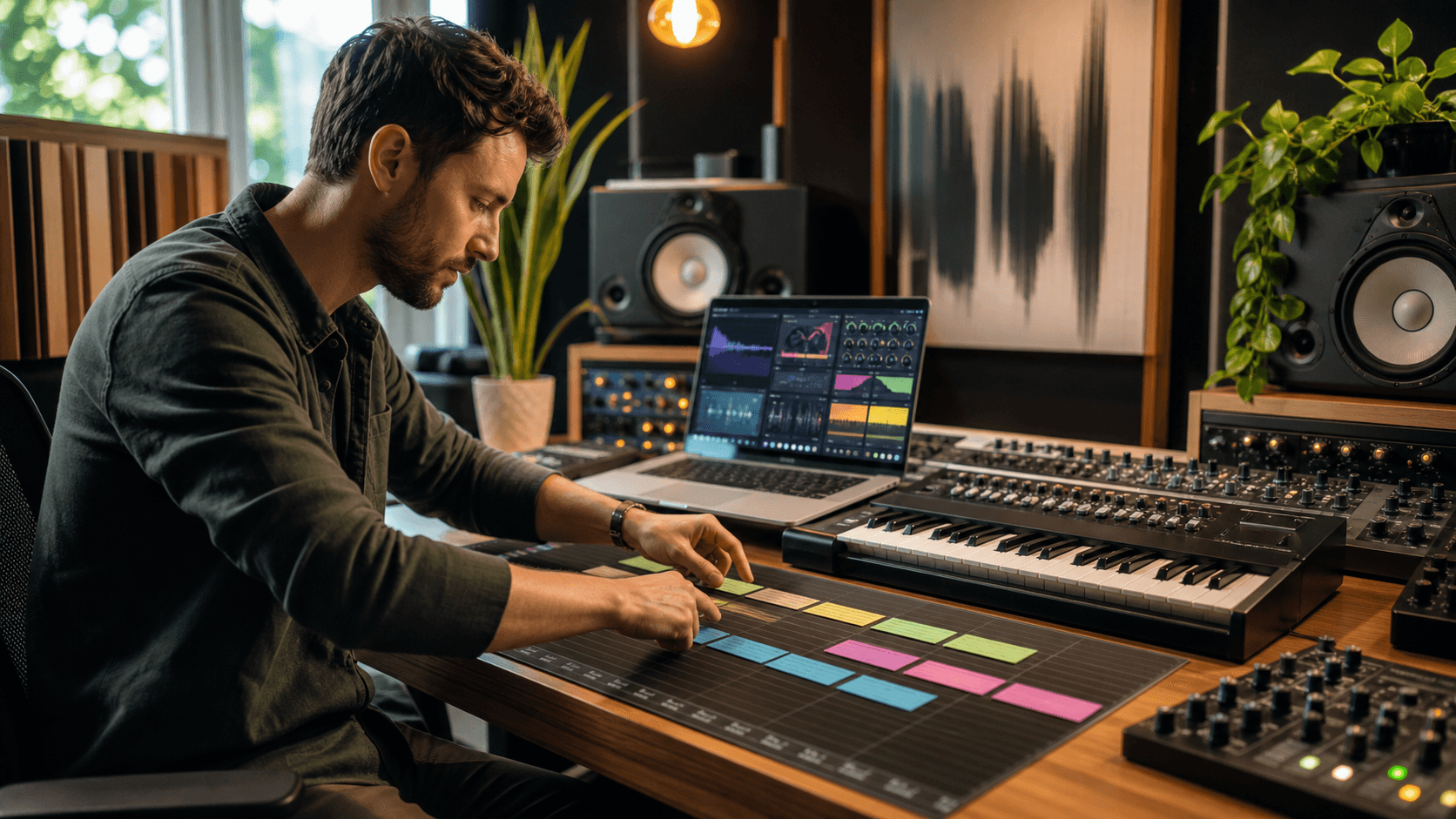
A well-tuned PC can feel like a new studio upgrade. When our system is set up right, our DAW sessions run smoother, our virtual instruments feel more responsive, and we can stack our favorite plugins without fear that the whole thing will choke. Low latency stops being a dream and starts becoming normal.
When our system is not tuned, we get the ugly stuff. Crackles when the chorus hits, dropouts the moment we add one more reverb, laggy MIDI that makes tight playing almost impossible, and slow project loads that kill the mood before we even start. The good news is that most of this comes down to a handful of settings we can fix in an afternoon.
In this guide, we are walking through a practical PC optimization checklist for music production software for PC. It works with all major DAWs and most audio interfaces. Mid-year is a great time to give the studio machine a tune-up, so it can handle summer scoring jobs, festival show prep, and all those end-of-year album projects without breaking a sweat.
Dialing in Buffer Size for Low Latency Sweet Spots
The audio buffer is how many samples your system "stacks up" before sending them in and out. A smaller buffer means lower latency and a tighter feel when playing, but it also means more stress on the CPU. A bigger buffer gives the PC more breathing room, but adds delay between playing and hearing the sound.
A good starting approach is simple:
- For tracking, live playing, or streaming performances, try 64 to 128 samples
- For mixing, heavy processing, and big virtual instrument stacks, try 256 to 512 samples
- Switch between these depending on what you are doing in the session
Most DAWs keep the buffer setting inside the audio preferences. We like to open a busy project with some virtual instruments, a few bus compressors, some reverbs, and then slowly lower the buffer while the song plays. When we hear pops and clicks, we know we just hit the edge of what the PC can handle at that moment.
If lowering the buffer causes problems, try these steps:
- Turn off or remove any plugins you are not using
- Freeze or bounce tracks with heavy synths or oversampled effects
- Check that no other app is using the audio interface in the background
That "ceiling" is different on every machine. The goal is to find the lowest buffer that stays solid for the type of work you are doing right now.
Choosing the Right ASIO Driver and Audio Interface
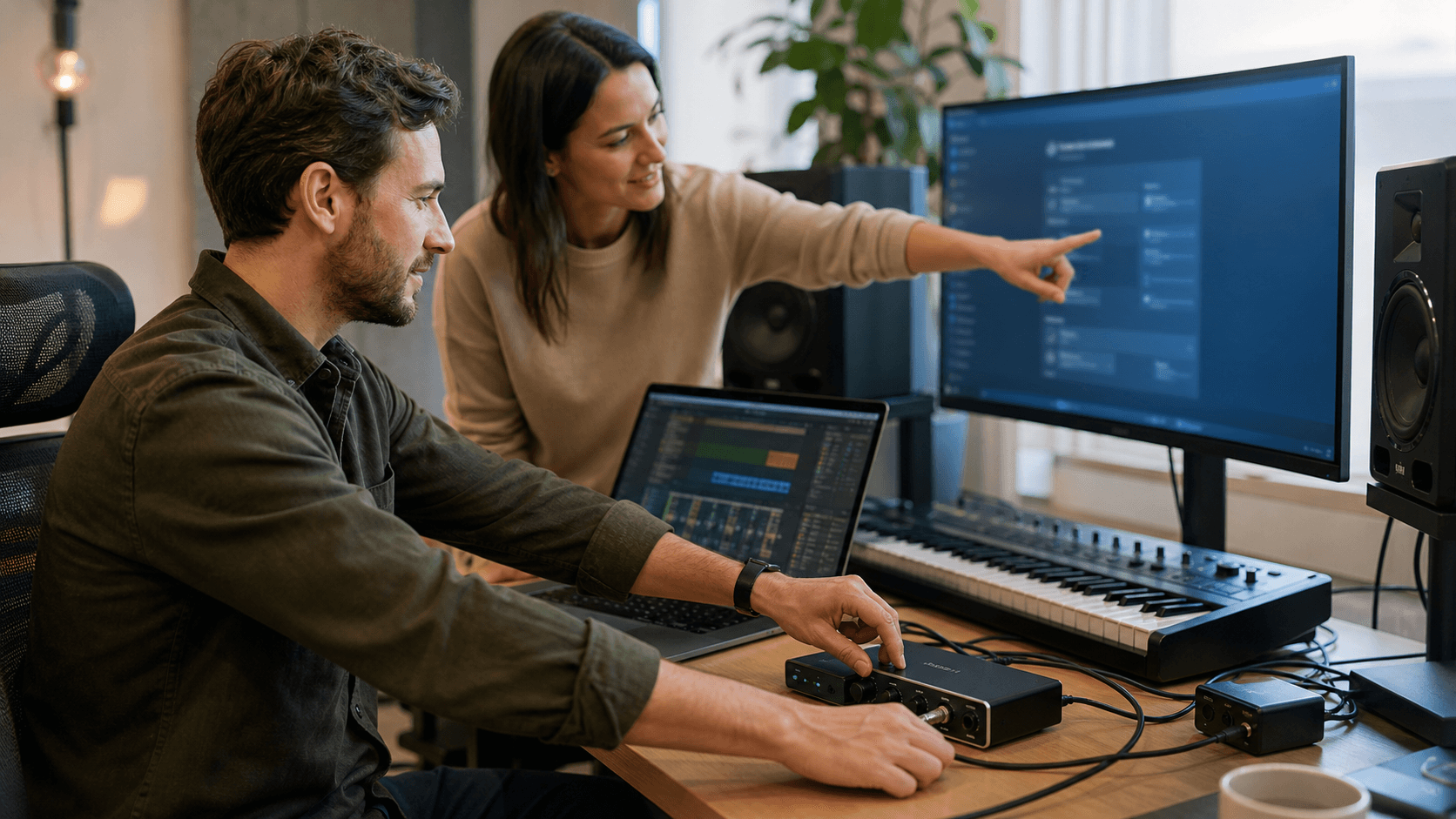
On Windows, the driver you pick matters as much as the buffer size. ASIO drivers are built for real-time audio, while generic options like MME or DirectSound are made for simple system sounds and streaming video. For music production software for PC, we want the native ASIO driver that comes from the audio interface manufacturer.
A stable setup usually looks like this:
- Install the official driver from your interface manufacturer
- Select that ASIO driver in your DAW audio preferences
- Turn off or avoid using other random virtual audio drivers during sessions
Inside the ASIO control panel, focus on:
- Sample rate, usually 44.1 or 48 kHz for most production
- Buffer size, which should match what you set in your DAW
- Exclusive mode, which can stop system sounds from fighting for the driver
ASIO4ALL can help in a pinch if we have no proper ASIO driver, but it is a workaround, not the first choice. When using more than one audio device, pick one main interface for all session input and output. That means no bouncing between onboard sound and the external interface, and keeping system audio and DAW audio on the same sample rate to avoid clicks, pitch issues, or "device in use" errors.
Power Settings That Stop Glitches Before They Start
Windows power plans can quietly ruin low-latency sessions. If the system is allowed to throttle the CPU to save energy, we can get random spikes, crackles, and lag right in the middle of a take. For studio work, we want steady performance, not aggressive power saving.
Set up a performance-focused power plan:
- Choose High Performance or Ultimate Performance if it is available
- Turn off sleep and hibernation while you are working
- Stop USB ports from powering down, so your MIDI controllers and interface stay connected
On laptops, this matters even more. Plug in whenever possible, since battery modes often cut CPU power and fan speed. Turn off heavy battery saver features while producing. In the warmer months, give the laptop airflow, avoid blocking the vents, and consider using a stand so the fans can keep up during long sessions.
With solid power settings, our plugins and virtual instruments behave much better. We see fewer CPU spikes, smoother meters, and more stable real-time playing, even when we are loading big sample libraries or complex synth patches.
Essential Windows Tweaks for Stable Studio PCs
Once drivers and power are set, we can clean up the rest of Windows so it stays out of the way. The goal is a "lean and clean" system that lets the DAW and plugins do the heavy lifting without random background stuff jumping in.
Start with basic clean-up:
- Turn off Windows system sounds so they do not play through the interface
- Stop unneeded startup apps so they do not eat CPU or RAM
- Reduce fancy visual effects and animations to keep the GPU calm
- Pause or schedule antivirus scans so they do not run during recording
For audio-focused tweaks:
- Disable audio enhancements in the Windows sound control panels
- Match the system sample rate to your main DAW setting
- Send all monitoring through your dedicated audio interface instead of the onboard sound
If you still hear dropouts, DPC latency might be the culprit. Keeping chipset, graphics, and network drivers updated can help. Sometimes Wi-Fi or Bluetooth drivers cause spikes, so trying a session with those adapters off can be a good test. There are DPC latency checker apps that highlight which drivers misbehave, making it easier to track down stubborn glitches.
Locking in Your Personal PC Optimization Routine
Once everything is running smoothly, it pays to lock it in. Write down your favorite buffer sizes, sample rates, power plan, and ASIO settings that feel the most stable on your setup. That way, if a system update resets something, you can get back to your sweet spot fast.
Many producers like a quick pre-session checklist:
- Reboot the PC
- Confirm the correct power plan is active
- Close browsers, game launchers, and any chat apps
- Check audio interface connections, sample rate, and buffer size
Revisit your setup every few months, especially after big Windows updates or after adding heavy new music production software for PC. At Audio Plugin Deals, we care about that part too, because a stable, low-latency PC lets you fully enjoy those new synths, effects, and orchestral collections without worrying whether your next chord will crackle or glide.
Get Started With Your Project Today
Take the next step in shaping your sound with our curated selection of music production software for PC. At Audio Plugin Deals, we handpick plugins that help you work faster, stay creative, and get professional results from your home studio. If you have questions about which plugins fit your workflow, feel free to contact us so we can help you choose the right setup. Start building your ideal toolkit today and keep your best ideas moving forward.